Friday, August 07, 2009

What is SMF and how it works

What is SMF and how it works

Traditionally unix operating systems included set of services, program which listens and respond to request to perform some tasks. For example network,sshd, webserver etc.

Most of unix platforms support rc.d structure to start, stop and to manage it.
But Solaris 10 has implemented new unified feature called Service Management(SMF), still they support rc.d for compatibilty but I think in future they put all services under SMF.

So how SMF is different from traditional rc.d:
SMF is of self healing, it provides automatic recovery from software and hardware failures.
You can get more information about one service, like its dependencies, log locaton etc.
Provides information about misconfiguration so You can identify the reason of failure.

TO manage SMF you can use below commands:

svcs -a -- List of services installed on system
svcs -l -- To get more information
svcadm enable -- To start the service
svcadm disable -- To disable the service
svcs -x -- More information about failure

So when you give command svcs -a, you will realize some weird service names like this

svc:/system/cron:default

This is called Fault Managed Resource identifier(FMRI), it used to identify system objects.

So if you want to stop or restart this service, you can use

svcadm disable svc:/system/cron:default
svcadm refresh svc:/system/cron:default

Thursday, September 11, 2008

Using screen on Linux ...Experience Remote Assistance in CLI

Below are the steps to attach two Linux shell sessions with screen.
Its like Remote Assistance in CLI.

1. Open two terminals with same login.

2. Run ps on both terminals.

3. Run screen -S on 1st terminal.

4. Run cd /var/run/screen/S-; ls on 2nd terminal.

5. Look for 1st terminal's bash PID entry.

6. Run screen -x on 2nd terminal.

Thursday, June 12, 2008

Shell script to monitor ur lab machines

Hello PPL,

After long time I addin new post. Below is the shell script using this can monitor server n their uptime.

[
#!/bin/bash

# add ip / hostname separated by while space
HOSTS="172.30.0.62 172.30.0.41 solaris netra1 172.30.0.76 172.30.0.114 aix"

# no ping request
COUNT=1

# email report when
SUBJECT="Ping failed"
EMAILID1="jack@knowlinux.com"
for myHost in $HOSTS
do
count=$(ping -c $COUNT $myHost | grep 'received' | awk -F',' '{ print $2 }' | awk '{ print $1 }')
if [ $count -eq 0 ]; then
# 100% failed
echo "$myHost is not reachable"
echo "Host : $myHost is down (ping failed) at $(date)" | mail -s "$SUBJECT" $EMAILID1 $EMAILID2 $EMAILID3
fi
done
]

Wednesday, December 27, 2006

shell script using expect for cvs automation

Hello PPL,

I always have to check the cvs status using cvs status command, so I tried to automate these things using expect
Expect is a tool for automating interactive
applications such as telnet, ftp, passwd, fsck, rlogin, tip, etc. Expect really
makes this stuff trivial. Expect is also useful for testing these same
applications. And by adding Tk, you can also wrap interactive applications in
X11 GUIs.
Home page http://expect.nist.gov/

#!/bin/bash

status=$(expect -c "spawn cvs -z9 -d :ext:blog@cvshostname:/path/cvsroot status
expect {password: { send \"password\r\"; exp_continue }
}
exit
")
echo ""
echo "$cvsstatus" > cvsstatus.txt

###continue your shell script after here####

####exit from script#######

Same you can use with ssh, telnet or ftp.
Let me know if some one have better thing with expect package because I am also new with scripting and expect :(

Thanks

Wednesday, October 18, 2006

what is superblock and how to recover it

Hello EB,

The scope of this article not covers about the basic things about file system, but its about troubleshooting of currupt file system.
So, when you create file system on hard drive it will sub devided into multiple file system blocks.
Blocks are used for -
1. To store user data
2. Some blocks used for to store file system's metadata.
(Metadata is kind of structure of your file system and it contents superblock, indoes and directories)

Superblock - Each of your filesystem has a superblock. File system like ext2. ext3 etc. Superblock contents the information about file system like -
* File system type
* Size
* Status
* Information about other metadata

Now you will guess that how important is superblock for your filesystem, if that is that currupt then you may not able to use that partition or may you will error while tring to mount that filesystem.
Following are some errors when superblock get currupts or some bad sectors
- You cant able to mount the filesystem, it will refuse to mount
- Filesystem gets hang
- Sometimes though you are able to mount that filesystem, but strange behavior occures.

These kind of errors occures because of bunch reasons. Most of the time fsck works fine for these errors -
$e2fsck -f /dev/hda3

(-f option for forcefully checking even filesystem seems clean)

Now fsck doesnt work because of lost of superblock, what you will do??
Note that Linux maintains multiple redundant copies of the superblock in every filesystem. You can find out this information with this following command -
$dumpe2fs /dev/hda6 grep -i superblock
dumpe2fs 1.32 (09-Nov-2002)
Primary superblock at 1, Group descriptors at 2-2
Backup superblock at 8193, Group descriptors at 8194-8194
Backup superblock at 24577, Group descriptors at 24578-24578
Backup superblock at 40961, Group descriptors at 40962-40962
Backup superblock at 57345, Group descriptors at 57346-57346
Backup superblock at 73729, Group descriptors at 73730-73730

To repair file system by alternative superblock
$e2fsck -f -b 8193 /dev/hda6

(Take backup using dd before doing running commands)

If you are using Sun Solaris, as My experience frequent power failure can get you hell :-( . I am using old sparc and one time in month I have run fsck using commands as per my last blog. So if your Sun Solaris lost the superblock then boot from cdrom or network, to retrive information about your filesystem's superblock give following command -
$newfs -N /dev/rdsk/devicename

Now use alternative superblock
$fsck -F ufs -o b=block-number /dev/rdsk/devicename

okie guys, hope this information helps somebody.

Tuesday, October 17, 2006

smb partition mounting using mount command

Hello EB,

Here is the useful commands when you want to browse the smb shared files using user name, password and even you can specify specific domain -

smbclient -W domain -L smbhost(IP) -U vishalh
mount -t smbfs -o username=amolk,password,workgroup=domain //smbhost(IP)/share /mnt

Wednesday, October 04, 2006

Sun Solaris - Solution for fsck error at boot time

Hello EB,

Most of time we get some problems with Sun solaris machines at boot time, generally it because of bad sectors or damaged file system. Machine go into File system repair option, so deal with these kind of problems use following commands -

fsck -F (ufs/vxfs) /dev/rdsk/(partition)

noninteractive :fsck tries to repair all the problems it finds in a file system without stopping for user response useful in case of a large number of inconsistencies in a file system but has the disadvantage of removing some useful files which are detected to be corrupt .
If file system is found to have problem at the booting time non interactive fsck fsck is run and all errors which are considered safe to correct are corrected. But if still file system has problems the system boots in single user mode asking for user to manually run the fsck to correct the problems in file system

fsck -F (ufs/vxfs) -Y /dev/rdsk/(partition)

Please use this option at your own risk because it will consider "yes" option for every qwestion so your filesystem might get modified.
Some fsck options as follows -

fsck [ -F fstype] [-V] [-yY] [-o options] special
-F fstype type of file system to be repaired ( ufs , vxfs etc)
-V verify the command line syntax but do not run the command
-y or -Y Run the command in non interactive mode - repair all errors encountered without waiting for user response.
-o options Three options can be specified with -o flag
b=n where n is the number of next super block if primary super block is corrupted in a file system .
p option used to make safe repair options during the booting process.
f force the file system check regardless of its clean flag.
special - Block or character device name of the file system to be checked/repaired - for example /dev/rdsk/c0t3d0s4 .Character device should be used for consistencies check & repair
phases:
fsck checks the file system in a series of 5 pages and checks a specific functionality of file system in each phase.
** phase 1 - Check Blocks and Sizes
** phase 2 - Check Pathnames
** phase 3 - Check Connectivity
** phase 4 - Check Reference Counts
** phase 5 - Check Cylinder Groups

Wednesday, September 06, 2006

Benchmark chart of Linux v/s Windows


Hello EB,

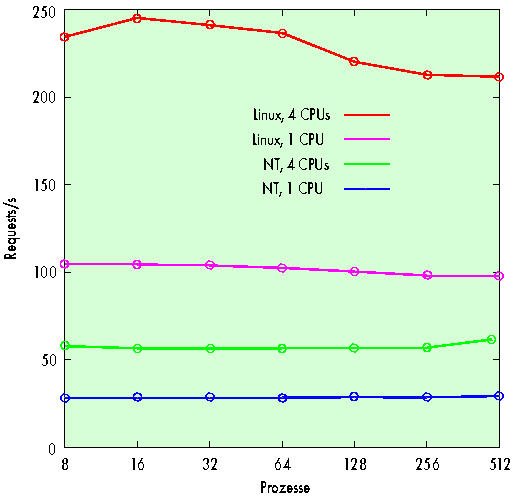
I have both Linux and windows while running webserver. In this senario, the overall size of one million files was about twice as large as the 2 GB of main memory. The total number of requests in test runs for which a reboot had previously cleared the buffer cache was clearly below 500,000. Files would generally have to be loaded from hard disk before being sent through the net.
In this setup, the freeware system clearly shows better results: While NT can hardly manage more than 30 requests per second, Linux can handle more than 166. With 512 client processes, it even manages 274 pages per second. Since more than 400,000 pages are retrieved during this test, however, we cannot be entirely sure that the increase especially towards the end of the graph isn't down to a caching effect. But who would complain about an overly efficient buffer cache?
When calling CGI scripts, Windows NT is no match for Linux. As the load is not confined to kernel mode in this case, Linux can benefit from additional CPUs. The graph at the bottom nicely depicts the linear increase for a CGI script with integrated delay.

Wednesday, August 30, 2006

Remote installation of RHES4 64bit

Remote installation of RHES4.2 64bit -

If that server is already having redhat version installed –

1. Copy kernel and initrd image in /boot directory (In my senario I already made RHES4u2.tar.gz gz file using /remoteinstall/Redhat4update2/images/pxeboot/* on my file server , you can use 1st CD of RHES4update2 top copy the kernel and initrd image)
172.30.0.62 - This is my file server

scp username@173.30.0.62:/remoteinstall/Redhat/RHES4u2.tar.gz
tar -xvzf RHES4.u2.tar.gz
cp pxeboot/* /boot/

2. Edit the /etc/grub.conf file. Go onto next line of splash image.
title rhes4
root (hd0,0)
kernel /vmlinuz vnc vncconnect=172.30.0.3 headless ip=172.30.0.127 netmask=255.255.255.0 gateway=172.30.0.1 dns=172.30.0.41 ks=http://172.30.0.131/ks4.cfg
initrd /initrd.img

Save the file and reboot the machine.

3. Now start you vncviewer into listen mode.
(Make following changes
1.Replace 172.30.0.3 ip with your desktop’s ip
2. Replace 172.30.0.127 with to the IP of the machine which you are installing.)

My kick start configuration file looks like this -
# Kickstart file automatically generated by anaconda.

install
nfs --server=172.30.0.62 --dir=/big2/Redhat/RHES4.u2_64
lang en_US.UTF-8
langsupport --default=en_US.UTF-8 en_US.UTF-8
keyboard us
rootpw --iscrypted $1$1zTBqKn5$lnZ052YwM6uILBON/khw0.
firewall --disabled
selinux --enforcing
authconfig --enableshadow --enablemd5
timezone --utc Asia/Calcutta
bootloader --location=mbr --append="rhgb quiet"
# The following is the partition information you requested
# Note that any partitions you deleted are not expressed
# here so unless you clear all partitions first, this is
# not guaranteed to work
clearpart --all
part /boot --fstype ext3 --size=100
part /usr --fstype ext3 --size=15000
part / --fstype ext3 --size=5000
part /opt --fstype ext3 --size=2000
part /var --fstype ext3 --size=2000
part /tmp --fstype ext3 --size=2000
part swap --size=2000

%packages
@ compat-arch-development
@ admin-tools
@ system-tools
@ dialup
@ compat-arch-support
@ legacy-software-development
@ base-x
@ development-tools
e2fsprogs
kernel-devel
kernel

%post

Hope this will help somebody :)

Thursday, August 24, 2006

rpm options

Hello EB,

rpm is a powerful Package Manager, which can be used to build, install, query, verify, update, and erase individual software packages. A package consists of an archive of files and meta-data used to install and erase the archive files. The meta-data includes helper scripts, file attributes, and descriptive information about the package. Packages come in two varieties: binary packages, used to encapsulate software to be installed, and source packages, containing the source code and recipe necessary to produce binary packages.

Now most of famous distribution used rpm packages like redhat, suse and even lot free distributions like white box.

Following are some but basic option for rpm command -

rpm {-i--install} [install-options] PACKAGE_FILE ...
rpm {-U--upgrade} [install-options] PACKAGE_FILE ...

  • Sometimes you want to know which library uses which rpm packages or vice versa one rpm packages installs which libraries

#rpm -qf /usr/lib/libstdc++-2-libc6.1-1-2.9.0.so
compat-libstdc++-7.3-2.96.128

#rpm -ql compat-libstdc++-296-2.96-132.7.2
/usr/lib/libstdc++-2-libc6.1-1-2.9.0.so
/usr/lib/libstdc++-3-libc6.2-2-2.10.0.so
/usr/lib/libstdc++-libc6.2-2.so.3

  • Most of time you want to uninstall some rpm packages and you use rpm -e but it says there multiple packages are exist use

rpm -e --allmatches {rpm name}

Let me know if you have any queries with rpm commands,

hope these information will help you.

Thanks

Tuesday, July 18, 2006

Free E-Books To Download

Hello Guys,

Check out this kool link for free e-books to download till 4th August 2006.
So hurry...

http://worldebookfair.com/Technical_eBook_Colleciton.htm

Cheers,

Thursday, July 06, 2006

Desktop Linux Edition from Xandros


Xandros Desktop Home Edition - Premium is a complete Linux desktop operating system that also includes the applications needed to work, communicate and play. Built on the stable and reliable Debian Linux platform, Xandros Desktop allows you to enjoy your digital lifestyle, the way you want to, without the hassles of viruses, spyware and other security threats. Xandros is fun and easy to use. It installs in just 4 clicks, and does not require any Linux or technical know-how. Discover how easily you will enjoy the benefits of Linux and bring security and stability you can count on to your PC with Xandros Desktop.
Music · Photos · Video · Web · E-mail · Multimedia
The new home for your digital life is ready. From web surfing to auction bidding, photo taking to album making, video streaming to iPod syncing and e-mailing to online banking… Wherever your digital life may take you, Xandros Desktop is the secure and exciting gateway to your digital world.
For more information - www.xandros.com

Redhat Made It Easy


Redhat made it easy.

You know Linux is reliable. You know it has security you can trust. In fact, nearly half of medium-sized businesses rate moving to Linux as either important or very important.* With the right experience and expertise, you can make the move, too.

The reputation of Linux in enterprise environments is rock solid. For its performance it has attracted some of the largest financial institutions. For its security it has been adopted by governments around the globe.

We believe small and mid-sized companies should have every advantage that the largest companies have with their technology: Performance, reliability, affordability, room to grow. Without compromise.

Redhat made it easy.

Keybank
Dave Seager
VP Manager of UNIX systems

Keybank is the 16th largest financial institution in the US with approximately 2000 branches and 22,000 employees. They needed to consolidate existing platforms and build bridges between existing systems. They looked at all the other Linux companies but quickly realized that Red Hat is the market leader and that there was no comparison. They also realized that running Red Hat Enterprise Linux 4 on Intel-based platforms gave them the best overall solution providing the highest performance, best cost savings, and the most choice.

Tuesday, July 04, 2006

Advantages to Linux Web Hosting

What are the Advantages to Linux Web Hosting?

* Stability: Linux/Unix operating systems are very stable and robust. A web site housed on a Linux operating system will excellent up-time (of the order of 99.9%). Of course, other factors such as power supply, network operating center, and network load etc. also matter when it comes to maintaining the system uptime.
* Cost Effective: With Linux OS, there are no licensing fees as opposed to it's competitors. The Linux OS comes free of cost (or at very insignificant cost, usually cost of distribution). Free server applications such as FTP, Web Server, DNS Server, and File Server are also very stable. PLETH recommends the PLESK™ Control Panel (which does require licensing) for all of our web hosting accounts simply because it adds usability and flexibility to our clients. (see additional PLESK™ Control Panel information below)
* Compatibility: All types of file extensions (or scripts) can be used when using Linux web server. Commonly, the following extensions are supported: .cgi, .html, .htm, .pl, .php, .shtml, .asp (requires additional plug-in), .xml, and others as well as support for Microsoft Frontpage Extensions.
* Portability and Scalability: A web site designed to be hosted on a Linux based web server can be hosted on a Windows web server easily, where as the reverse is not always true. This provides flexibility for future growth.
* Most widely used and supported: Linux/Unix based web hosting is by far the most widely used OS in comparison to Windows based web hosting, and technical support can be a lot easier to locate should it be required.
* Scalability: A web site is dynamic. Usually, a web site starts with a few pages of html and grows over a period of time to suit our customers requirements. It is preferable to design a web site keeping this requirements in mind. A web site designed for compatibility with a Linux/Unix based web server meets the scalability requirement easily without making any site wide design changes.

What is web hosting

What is the web hosting?

Web hosting is a service that provides individuals, organizations and users with online systems for storing information, images, video, or any content accessible via the Web. Web hosts are companies that provide space on a server they own for use by their clients as well as providing Internet connectivity, typically in a data center. Web hosts can also provide data center space and connectivity to the Internet for servers they do not own to be located in their data center.


Types of hosting

FREE HOSTING :- just about all the free web hosting available is extremely limited when compared to paid hosting. Free web hosts generally require their own ads on your site, only allow web-based uploading and editing of your site, and have very tight disk space and traffic limits. Still, most people get their start via free web hosting

IMAGE HOSTING :- hosting only a few different formats of images. This type of hosting is often free and most require registrations. Most image hosts allow hotlinking, so that you can upload images on their servers and not waste space/bandwidth on yours.

SHARED HOSTING :- one's Web site is placed on the same server as several hundred other sites. A problem with another site on the server can bring all of the sites down. Shared hosting also brings with it some restrictions regarding what exactly can be done, although these restrictions are nowhere near as restrictive as for free hosting.

RESELLER HOSTING :- designed for those who want to become Web hosts themselves. One gets a large amount of space and bandwidth that can be divided up among as many sites as the user wants to put on his account. A reseller account is placed on the same server with other reseller accounts, just like with shared hosting but there are fewer accounts.
DEDICATED HOSTING: With dedicated hosting, one gets a server of one's own. They have no restrictions, except for those designed to maintain the integrity of the Web host's network (for instance, banning sites with adult content due to the increase risk of attack by crackers and grey legal issues for the ISP). Unless a separate plan is purchased from the host, the user is also generally on his own. This can be an expensive proposition, as the purchase of the dedicated server itself is generally far more expensive compared to shared hosting.

COLOCATED HOSTING :- This involves a server the user purchases himself and installs at the host's data center. Besides unmonitored reboots, the user must pay extra for many services dedicated hosting provides by default. Colocated hosting is generally chosen by people with server administration experience and those with more significant needs than which can be satisfied by dedicated or shared hosting. This is usually the most expensive and least cost effective option if you are not colocating many servers


Linux Hosting is considered to be one of the most stable and reliable hosting platforms around. It also has the additional advantages of not having to be licenced, being flexible, and supporting most programming languages.

What is the difference between Linux hosting and Windows hosting?

If you need to support Microsoft products such as ASP, ASP.NET, MS SQL, or VBScript or IIS, then Windows hosting fits your needs.
Linux is much more common with web hosts because of its stability and because it’s free. Therefore, Linux hosting is usually cheaper than Windows.

What are PHP, ASP, Perl, MySQL, MS SQL?

PHP - PHP: Hypertext Preprocessor, server side language
ASP - Active Server Pages, server side language
Perl - server side language
Each programming language has its own benefits and uses.
MySQL and MS SQL are database systems that you can use a database to organize your data.

Wednesday, June 28, 2006

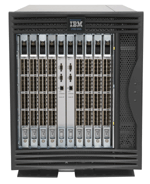
IBM TotalStorage SAN256B


IBM TotalStorage SAN256B

* High availability with built-in redundancy designed to avoid single points of failure
* Highly scalable director with 16 or 32 ports per port switch blade, and from 16 to 256 ports in a single domain
* Multiprotocol router blade with sixteen Fibre Channel (FC) ports and two Internet Protocol (IP) ports for SAN routing and distance extension over IP

* Port switch blades support FICON® Director switching with Fibre Channel/FICON intermix, FICON CUP (Control Unit Port) and FICON cascading
* Interoperable with other IBM® TotalStorage® SAN b-type switches and directors
* Offers advanced security with comprehensive policy-based security capabilities
* Offers advanced fabric services such as end-to-end performance monitoring and fabric-wide health monitoring

The IBM TotalStorage SAN256B, with next-generation director technology, is designed to provide outstanding performance, enhanced scalability and a design ready for high performance 4 Gbps capable hardware and expanded capability features. The SAN256B is well suited to address enterprise SAN customer requirements for infrastructure simplification and improved business continuity.
IBM TotalStorage SAN256B fabric switch
Improved port density enables up to 256 ports in 14U vertical rack space to maximize datacenter efficiency

The SAN256B director interoperates with other members of the IBM TotalStorage SAN b-type family. It can be configured with a wide range of highly scalable solutions that address demands for integrated IBM System z™ and open system server enterprise SANs.


Common features
· Designed for mid-range to enterprise-class SANs
· Ideal as core-component in a core-to-edge SAN fabric
· 4 Gbps industry-standard Fibre Channel (FC) switch (requires storage system hardware that supports 4 Gbps throughput)
· 4, 2 and 1 Gbps auto-sensing capability
· Fabric Operating System V5 is common across all members of the IBM TotalStorage SAN b-type family
· Advanced Inter-Switch Link (ISL) Trunking, Load Balancing and Advanced Zoning
· Web Tools, Fabric Watch, Hot Code Activation and Performance Monitor
· Optional Extended Fabric Activation, Remote Switch Activation, FICON with CUP Activation, Advanced Security Activation, FCIP Activation

Hardware summary
· Chassis includes two control processor blades plus space for one to eight port blades, dual power supplies and fans in a 14U rack height
· Available 4 Gbps 16-port and 32-port switch blades and 16-port FC/2-port IP routing blades
· 4 Gbps shortwave and longwave Small Form-factor Pluggable (SFP) optical transceivers support distances up to 500m and 35 km respectively
· Full Fabric Operation and Universal Port (E, F and FL port) operation
· Many non-disruptive software upgrades and hot-swappable switch blades, power supplies and fans
· Fabric Shortest Path First (FSPF) designed to reroute around failed links
· Option to install in IBM TotalStorage SAN Cabinet C36

Making Changes in /proc filesystem

Making changes

Detailing the exact information and usage of each file in /proc is outside the scope of this article. For more information about any /proc files not discussed in this article, one of the best sources is the Linux kernel source itself, which contains some very good documentation. The following files in /proc are more useful to a system administrator. This is not meant to be an exhaustive treatment but an easy-access reference for day-to-day use.

/proc/scsi

/proc/scsi/scsi
One of the most useful things to learn as a system administrator is how to add more disk space if you have hot-swap drives available to you, without rebooting the system. Without using /proc, you could insert your drive, but you would then have to reboot in order to get the system to recognize the new disk. Here, you can get the system to recognize the new drive with the following command:

echo "scsi add-single-device w x y z" > /proc/scsi/scsi

For this command to work properly, you must get the parameter values w, x, y, and z correct, as follows:

* w is the host adapter ID, where the first adapter is zero (0)
* x is the SCSI channel on the host adaptor, where the first channel is zero (0)
* y is the SCSI ID of the device
* z is the LUN number, where the first LUN is zero (0)

Once your disk has been added to the system, you can mount any previously formatted filesystems or you can start formatting it, and so on. If you are not sure about what device the disk will be, or you want to check any pre-existing partitions, for example, you can use a command such as fdisk -l, which will report this information back to you.

Conversely, the command to remove a device from your system without a reboot would be:

echo "scsi remove-single-device w x y z" > /proc/scsi/scsi

Before you enter this command and remove your hot-swap SCSI disk from your system, make sure you have unmounted any filesystems from this disk first.

/proc/sys/fs/

/proc/sys/fs/file-max
This specifies the maximum number of file handles that can be allocated. You may need to increase this value if users get error messages stating that they cannot open more files because the maximum number of open files has been reached. This can be set to any number of files and can be changed by writing a new numeric value to the file.

Default setting: 4096

/proc/sys/fs/file-nr
This file is related to file-max and holds three values:

* Number of allocated file handles
* Number of used file handles
* Maximum number of file handles

This file is read-only and for informational purposes only.

/proc/sys/fs/inode-*
Any files starting with the name "inode" will perform the same operation as files starting with the name "file" as above, but perform their operation relative to inodes instead of file handles.

/proc/sys/fs/overflowuid and /proc/sys/fs/overflowgid
This holds the User ID (UID) and Group ID (GID) for any filesystems that support 16-bit user and group IDs. These values can be changed, but if you really do find the need to do this, you might find it easier to change your group and password file entries instead.

Default Setting: 65534

/proc/sys/fs/super-max
This specifies the maximum number of super block handlers. Any filesystem you mount needs to use a super block, so you could possibly run out if you mount a lot of filesystems.

Default setting: 256

/proc/sys/fs/super-nr
This shows the currently allocated number of super blocks. This file is read-only and for informational purposes only.

/proc/sys/kernel

/proc/sys/kernel/acct
This holds three configurable values that control when process accounting takes place based on the amount of free space (as a percentage) on the filesystem that contains the log:

1. If free space goes below this percentage value then process accounting stops
2. If free space goes above this percentage value then process accounting starts
3. The frequency (in seconds) at which the other two values will be checked

To change a value in this file you should echo a space separated list of numbers.

Default setting: 2 4 30

These values will stop accounting if there is less than 2 percent free space on the filesystem that contains the log and starts it again if there is 4 or more percent free space. Checks are made every 30 seconds.

/proc/sys/kernel/ctrl-alt-del
This file holds a binary value that controls how the system reacts when it receives the ctrl+alt+delete key combination. The two values represent:

1. A zero (0) value means the ctrl+alt+delete is trapped and sent to the init program. This will allow the system to have a graceful shutdown and restart, as if you typed the shutdown command.
2. A one (1) value means the ctrl+alt+delete is not trapped and no clean shutdown will be performed, as if you just turned the power off.

Default setting: 0

/proc/sys/kernel/domainname
This allows you to configure your network domain name. This has no default value and may or may not already be set.

/proc/sys/kernel/hostname
This allows you to configure your network host name. This has no default value and may or may not already be set.

/proc/sys/kernel/msgmax
This specifies the maximum size of a message that can be sent from one process to another process. Messages are passed between processes in kernel memory that is not swapped out to disk, so if you increase this value, you will increase the amount of memory used by the operating system.

Default setting: 8192

/proc/sys/kernel/msgmnb
This specifies the maximum number of bytes in a single message queue.

Default setting: 16384

/proc/sys/kernel/msgmni
This specifies the maximum number of message queue identifiers.

Default setting: 16

/proc/sys/kernel/panic
This represents the amount of time (in seconds) the kernel will wait before rebooting if it reaches a "kernel panic." A setting of zero (0) seconds will disable rebooting on kernel panic.

Default setting: 0

/proc/sys/kernel/printk
This holds four numeric values that define where logging messages are sent, depending on their importance. For more information on different log levels, read the manpage for syslog(2). The four values of the file are:

1. Console Log Level: messages with a higher priority than this value will be printed to the console
2. Default Message Log Level: messages without a priority will be printed with this priority
3. Minimum Console Log Level: minimum (highest priority) value that the Console Log Level can be set to
4. Default Console Log Level: default value for Console Log Level

Default setting: 6 4 1 7

/proc/sys/kernel/shmall
This is the total amount of shared memory (in bytes) that can be used on the system at any given point.

Default setting: 2097152

/proc/sys/kernel/shmax
This specifies the largest shared memory segment size (in bytes) allowed by the kernel.

Default setting: 33554432

/proc/sys/kernel/shmmni
This represents the maximum number of shared memory segments for the whole system.

Default setting: 4096

/proc/sys/kernel/sysrq
This activates the System Request Key, if non-zero.

Default setting: 0

/proc/sys/kernel/threads-max
This is the maximum number of threads that can be used by the kernel.

Default setting: 2048

/proc/sys/net

/proc/sys/net/core/message_burst
This is the time required (in 1/10 seconds) to write a new warning message; other warning messages received during this time will be dropped. This is used to prevent Denial of Service attacks by someone attempting to flood your system with messages.

Default setting: 50 (5 seconds)

/proc/sys/net/core/message_cost
This holds a cost value associated with every warning message. The higher the value, the more likely the warning message is to be ignored.

Default setting: 5

/proc/sys/net/core/netdev_max_backlog
This gives the maximum number of packets allowed to queue when an interface receives packets faster than the kernel can process them.

Default setting: 300

/proc/sys/net/core/optmem_max
This specifies the maximum buffer size allowed per socket.

/proc/sys/net/core/rmem_default
This is the receive socket buffer's default size (in bytes).

/proc/sys/net/core/rmem_max
This is the receive socket buffer's maximum size (in bytes).

/proc/sys/net/core/wmem_default
This is the send socket buffer's default size (in bytes).

/proc/sys/net/core/wmem_max
This is the send socket buffer's maximum size (in bytes).

/proc/sys/net/ipv4
All of the IPv4 and IPv6 parameters are fully documented in the kernel source documentation. See the file /usr/src/linux/Documentation/networking/ip-sysctl.txt.

/proc/sys/net/ipv6
Same as IPv4.

/proc/sys/vm

/proc/sys/vm/buffermem
This controls the amount of the total system memory (as a percent) that will be used for buffer memory. It holds three values that can be set by writing a space-separated list to the file:

1. Minimum percentage of memory that should be used for buffers
2. The system will try and maintain this amount of buffer memory when system memory is being pruned in the event of a low amount of system memory remaining
3. Maximum percentage of memory that should be used for buffers

Default setting: 2 10 60

/proc/sys/vm/freepages
This controls how the system reacts to different levels of free memory. It holds three values that can be set by writing a space-separated list to the file:

1. If the number of free pages in the system reaches this minimum limit, only the kernel will be permitted to allocate any more memory.
2. If the number of free pages in the system falls below this limit, the kernel will start swapping more aggressively to free memory and maintain system performance.
3. The kernel will try to keep this amount of system memory free. Falling below this value will start the kernel swapping.

Default setting: 512 768 1024

/proc/sys/vm/kswapd
This controls how the kernel is allowed to swap memory. It holds three values that can be set by writing a space separated list to the file:

1. Maximum number of pages the kernel tries to free at one time. If you want to increase bandwidth to/from swap, you will need to increase this number.
2. Minimum number of times the kernel tries to free a page on each swap.
3. The number of pages the kernel can write in one swap. This has the greatest impact on system performance. The larger the value, the more data can be swapped and the less time is spent disk seeking. However, a value that is too large will adversely affect system performance by flooding the request queue.

Default setting: 512 32 8

/proc/sys/vm/pagecache
This does the same job as /proc/sys/vm/buffermem, but it does it for memory mapping and generic caching of files.

Friday, June 23, 2006

High-capacity NAS device on tap from Procom

IRVINE, CALIF. - Procom Technology is expected to launch a new high-end, network-attached storage appliance this week that lets heterogeneous enterprise customers share, consolidate and manage their storage resources.

The NetForce 3100HA is a scalable, high-availability NAS device with an initial capacity of more than four terabytes that customers can grow as their storage requirement increases. This can be done by inserting 36G- or 73G-byte drives into the rack-mount enclosure without taking the system down. The system also has fault-tolerant features such as redundant fans and RAID controllers. To connect it to the network, the NAS appliance has a 10/100/1000M bit/sec Ethernet adapter.

The NetForce is the entry-level model of Procom's storage family. In Windows NT networks it makes use of access control lists (ACL) and NT's multiple master domain architecture. ACLs are lists of users who are allowed to access the server and the access rights they have; the multiple master domain architecture is used in geographically separated midsized and large corporations to house the security and access rights for users.

The NetForce supports the Unix Network File System and Microsoft's NFS, as well as the Network Data Management Protocol, the newest standard for LAN-free backup. It is designed to scale to over 16 terabytes.

The NetForce will compete against file servers from Network Appliance and EMC. The Network Appliance 840 scales to over 4.5 terabytes. EMC's ip4700 has an upper capacity of 3.6 terabytes.

But it was the new device's easy installation and cost that attracted Varco, an oil and gas company in Houston.

"We put our [enterprise resource planning] system on a Network Appliance server originally," says Cory Lucas, network administrator for Varco. "It took a long time to install and was complex. We looked at a couple of alternatives, but they didn't offer us the storage capacity we wanted. The 3100 was a 15-minute install into our Windows NT environment at one-third the price of the Network Appliance product." Lucas says.

The NetForce 3100HA NAS appliance is available starting at $42,000.

Procom: www.procom.com

Benefits of NAS

- Almost any machine that can connect to the LAN (or is interconnected to the LAN through a WAN) can use NFS, CIFS or HTTP protocol to connect to a NAS and share files.
- A NAS identifies data by file name and byte offsets, transfers file data or file meta-data (file's owner, permissions, creation data, etc.), and handles security, user authentication, file locking
- A NAS allows greater sharing of information especially between disparate operating systems such as Unix and NT.
- File System managed by NAS head unit
- Backups and mirrors (utilizing features like NetApp's Snapshots) are done on files, not blocks, for a savings in bandwidth and time. A Snapshot can be tiny compared to its source volume.

what is NAS


Introduction to NAS - Network Attached Storage

Dedicated network devices provide affordable, easy access to data

Several new methods of utilizing computer networks for data storage have emerged in recent years. One popular approach, Network Attached Storage (NAS), allows homes and businesses to store and retrieve large amounts of data more affordably than ever before.
Background
Historically, floppy drives have been widely used to share data files, but today the storage needs of the average person far exceed the capacity of floppies. Businesses now maintain an increasingly large number of electronic documents and presentation sets including video clips. Home computer users, with the advent of MP3 music files and JPEG images scanned from photographs, likewise require greater and more convenient storage.

Central file servers use basic client/server networking technologies to solve these data storage problems. In its simplest form, a file server consists of PC or workstation hardware running a network operating system (NOS) that supports controlled file sharing (such as Novell NetWare, UNIX® or Microsoft Windows). Hard drives installed in the server provide gigabytes of space per disk, and tape drives attached to these servers can extend this capacity even further.

File servers boast a long track record of success, but many homes, workgroups and small businesses cannot justify dedicating a fully general-purpose computer to relatively simple data storage tasks. Enter NAS.

What Is NAS?
NAS challenges the traditional file server approach by creating systems designed specifically for data storage. Instead of starting with a general-purpose computer and configuring or removing features from that base, NAS designs begin with the bare-bones components necessary to support file transfers and add features "from the bottom up."

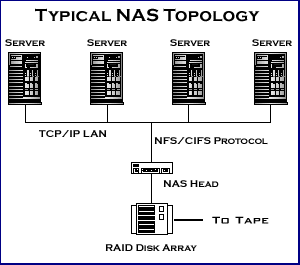
Like traditional file servers, NAS follows a client/server design. A single hardware device, often called the NAS box or NAS head, acts as the interface between the NAS and network clients. These NAS devices require no monitor, keyboard or mouse. They generally run an embedded operating system rather than a full-featured NOS. One or more disk (and possibly tape) drives can be attached to many NAS systems to increase total capacity. Clients always connect to the NAS head, however, rather than to the individual storage devices.

Clients generally access a NAS over an Ethernet connection. The NAS appears on the network as a single "node" that is the IP address of the head device.

A NAS can store any data that appears in the form of files, such as email boxes, Web content, remote system backups, and so on. Overall, the uses of a NAS parallel those of traditional file servers.

NAS systems strive for reliable operation and easy administration. They often include built-in features such as disk space quotas, secure authentication, or the automatic sending of email alerts should an error be detected.

NAS Protocols
Communication with a NAS head occurs over TCP/IP. More specifically, clients utilize any of several higher-level protocols (application or layer seven protocols in the OSI model) built on top of TCP/IP.

The two application protocols most commonly associated with NAS are Sun Network File System (NFS) and Common Internet File System (CIFS). Both NFS and CIFS operate in client/server fashion. Both predate the modern NAS by many years; original work on these protocols took place in the 1980s.

NFS was developed originally for sharing files between UNIX systems across a LAN. Support for NFS soon expanded to include non-UNIX systems; however, most NFS clients today are computers running some flavor of the UNIX operating system.

The CIFS was formerly known as Server Message Block (SMB). SMB was developed by IBM and Microsoft to support file sharing in DOS. As the protocol became widely used in Windows, the name changed to CIFS. This same protocol appears today in UNIX systems as part of the Samba package.

Many NAS systems also support Hypertext Transfer Protocol (HTTP). Clients can often download files in their Web browser from a NAS that supports HTTP. NAS systems also commonly employ HTTP as an access protocol for Web-based administrative user interfaces.